🎮 Step 2: Pair the Remote
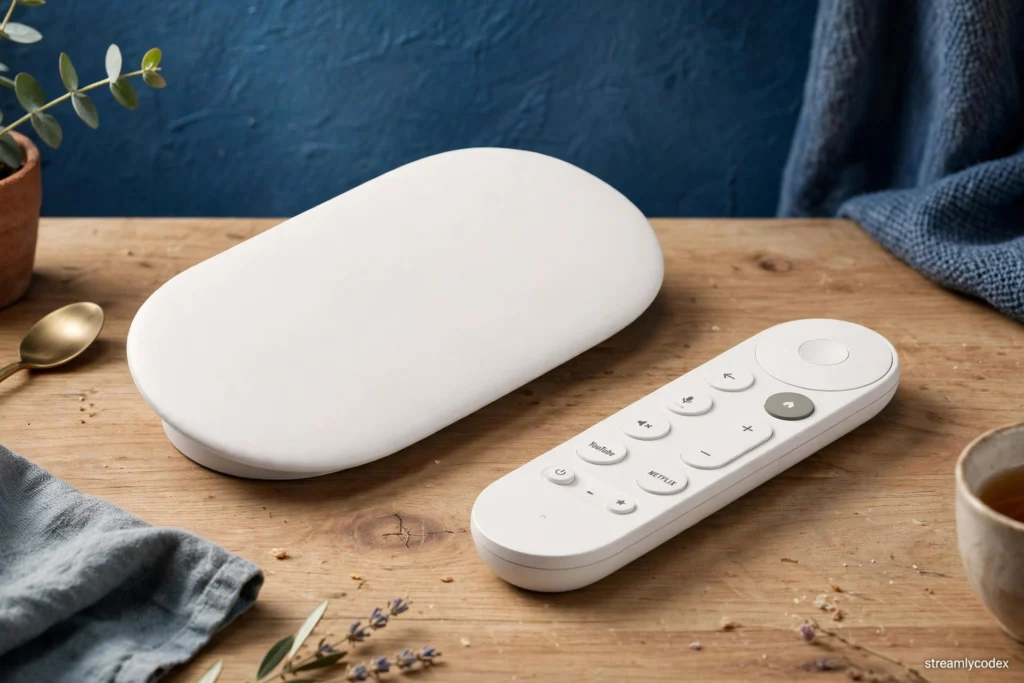
Pair the remote. Hold the remote close to the device and follow the on-screen pairing prompt. If pairing fails, hold Back + Home for a few seconds to re-pair.
🌍 Step 3: Choose Language and Region
Choose your language and region. Select your real European country. This controls your Google Play region, which decides which apps and payment methods are available. Do not select the US for “more apps” — it complicates payments and local apps.
📱 Step 4: Set Up Using Your Phone (Recommended)
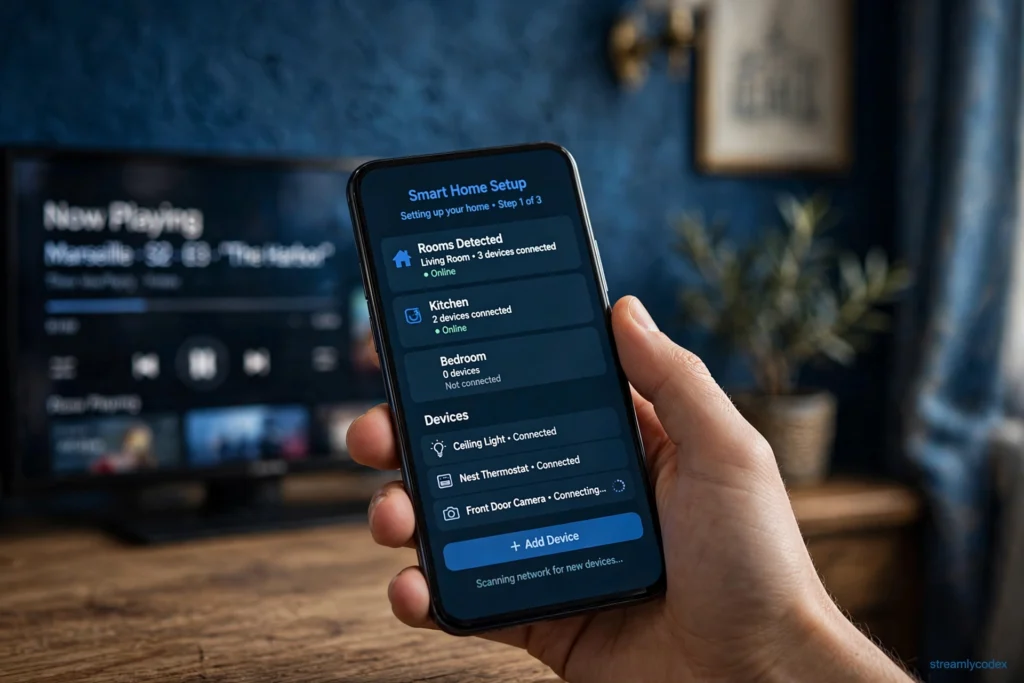
Set up with your phone (recommended). Open the Google Home app on your phone and follow the prompts. It transfers your Wi-Fi details and Google account automatically, which is much faster than typing with the remote.
Use your normal Google account. If you use YouTube Premium or Google One, those benefits carry over automatically.
📶 Step 5: Connect to Wi-Fi
Connect to Wi-Fi. The Streamer supports Wi-Fi 5. If your router is far, 2.4GHz reaches further but 5GHz is faster for 4K. For the most stable 4K Dolby Vision streaming, use the Streamer’s Ethernet port.
🔄 Step 6: Install Updates
Let it update. Google TV downloads system updates on first setup. Let them finish before installing apps — skipping updates causes app crashes later.
📺 Step 7: Install Streaming Apps in Europe
Install your apps. Open Google Play and install your essentials: Netflix, Prime Video, Disney+, Apple TV+, plus local catch-up apps (BBC iPlayer, ITVX, Channel 4 in the UK; ARD, ZDF in Germany; France TV in France). One honest note: UK catch-up apps integrate poorly with Google TV’s continue-watching row, so expect to open those apps directly.
🎬 Step 8: Set the Best Video Settings (4K / HDR / Dolby Vision)
Video settings. Go to Settings, Display and Sound. Google TV usually detects your TV correctly. For European TVs, set the base resolution to 4K 50Hz and enable automatic dynamic range and frame-rate matching if offered. If Dolby Vision looks too bright or washed out, try your TV’s Filmmaker or Cinema picture mode.
🔊 Step 9: Improve Audio Settings (Dolby Atmos)
Audio and casting. In Display and Sound, Advanced Sound Settings, set surround sound to Auto for Dolby Atmos passthrough.
🧠 Step 10: Enable Casting (Chromecast) Features
Google TV has Chromecast built in, so you can cast from your phone’s apps; make sure the device is visible in the Google Home app.
📺 Chromecast Owners: What Changes
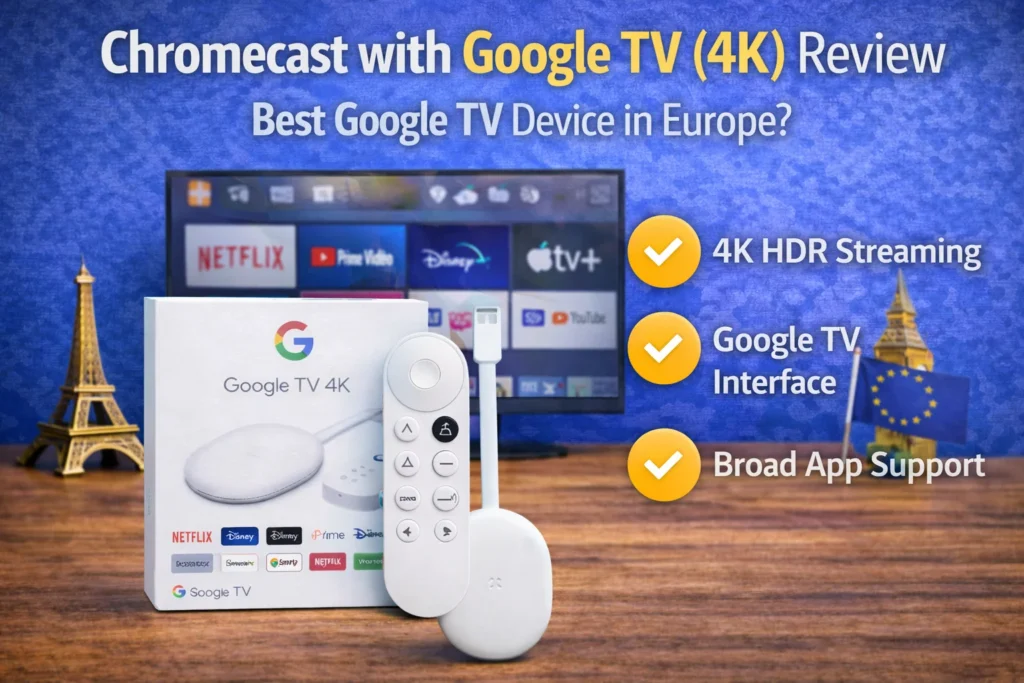
If you set up an older Chromecast with Google TV: the steps are identical, but note Google no longer sells or updates the Chromecast brand. Your device still receives app updates for now, but for new purchases the Google TV Streamer is the current model at £99.
⚠️ Common Google TV Setup Problems (And Fixes)
Google TV Not Connecting to Wi-Fi
✔ Restart router
✔ For 4K streaming, use 5GHz or the Streamer’s Ethernet port for the most stable connection
✔ Move router closer
✔ Unplug device for 30 seconds and reconnect
Apps Missing in Your Country
✔ Confirm your Google Play region matches your real European country
✔ Confirm Google account region
✔ Restart device after region changes
Remote Not Working
✔ Replace batteries
✔ Hold Back + Home for a few seconds to re-pair the remote
✔ Restart the device
Device Rebooting Randomly
✔ Plug the power adapter into a wall outlet — do not rely on your TV’s USB port for power
✔ Check the power cable is fully inserted
Dolby Vision Looks Wrong
✔ Switch your TV to Filmmaker or Cinema picture mode
✔ Make sure you are using an HDMI port that supports 4K HDR
Continue-Watching Missing UK Apps
✔ This is a known limitation: UK catch-up apps do not integrate with Google TV’s continue-watching row
✔ Open those apps directly to resume your shows
Lag or Slow Performance
✔ Uninstall unused apps
✔ Keep storage free
✔ Update system software
❓ Frequently Asked Questions
How long does Google TV setup take?
About 10–15 minutes from unboxing to streaming, especially if you use the phone-based setup.
Is Chromecast discontinued?
Yes. Google discontinued the Chromecast brand in 2026 and no longer sells or updates those devices. The Google TV Streamer is the current model at £99 in the UK.
Do I need the Google Home app to set up Google TV?
It is optional, but the phone-based setup is much faster: the Google Home app transfers your Wi-Fi details and Google account automatically.
Why are some apps missing from Google Play?
Your Google Play region does not match your country. Select your real European country during setup so the correct apps and payment methods are available.
Do I need a Google account?
Yes. A Google account is required to set up Google TV and install apps.
Does the Google TV Streamer have an Ethernet port?
Yes. The Streamer includes an Ethernet port — use it for the most stable 4K Dolby Vision streaming if your router is nearby.
🏆 Final Thoughts
That is the full setup: ten steps, about fifteen minutes. The settings that matter most for Europe are your real Play region, wall-outlet power, and 4K 50Hz with content matching enabled. Get those right and Google TV just works.
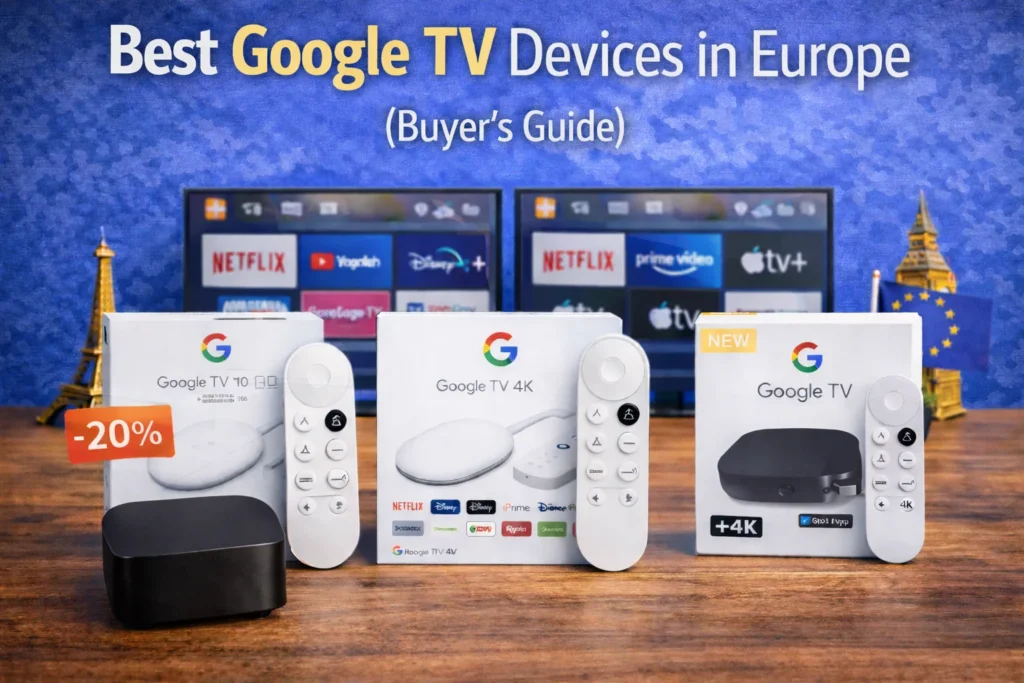
If you’re still choosing the best model, read our comparison below.