A slow Fire TV Stick is almost never a dying device. The cause is usually the same trio: a bloated app cache, storage running close to empty, and too many background processes fighting over limited RAM. All three are fixable in minutes. Work through these 12 fixes in order, starting with the three fastest wins below.
The 3 Fastest Wins (Do These First)
- Clear all app caches (30 seconds): Settings > Applications > Clear All Application Caches > Confirm. This fixes more slow Fire TV Sticks than everything else combined, and it never logs you out.
- Restart properly (2 minutes): hold Select + Play/Pause on the remote for about 5 seconds until the stick restarts.
- Uninstall apps you never open (5 minutes): every installed app eats storage even when idle.
Restart the Right Way
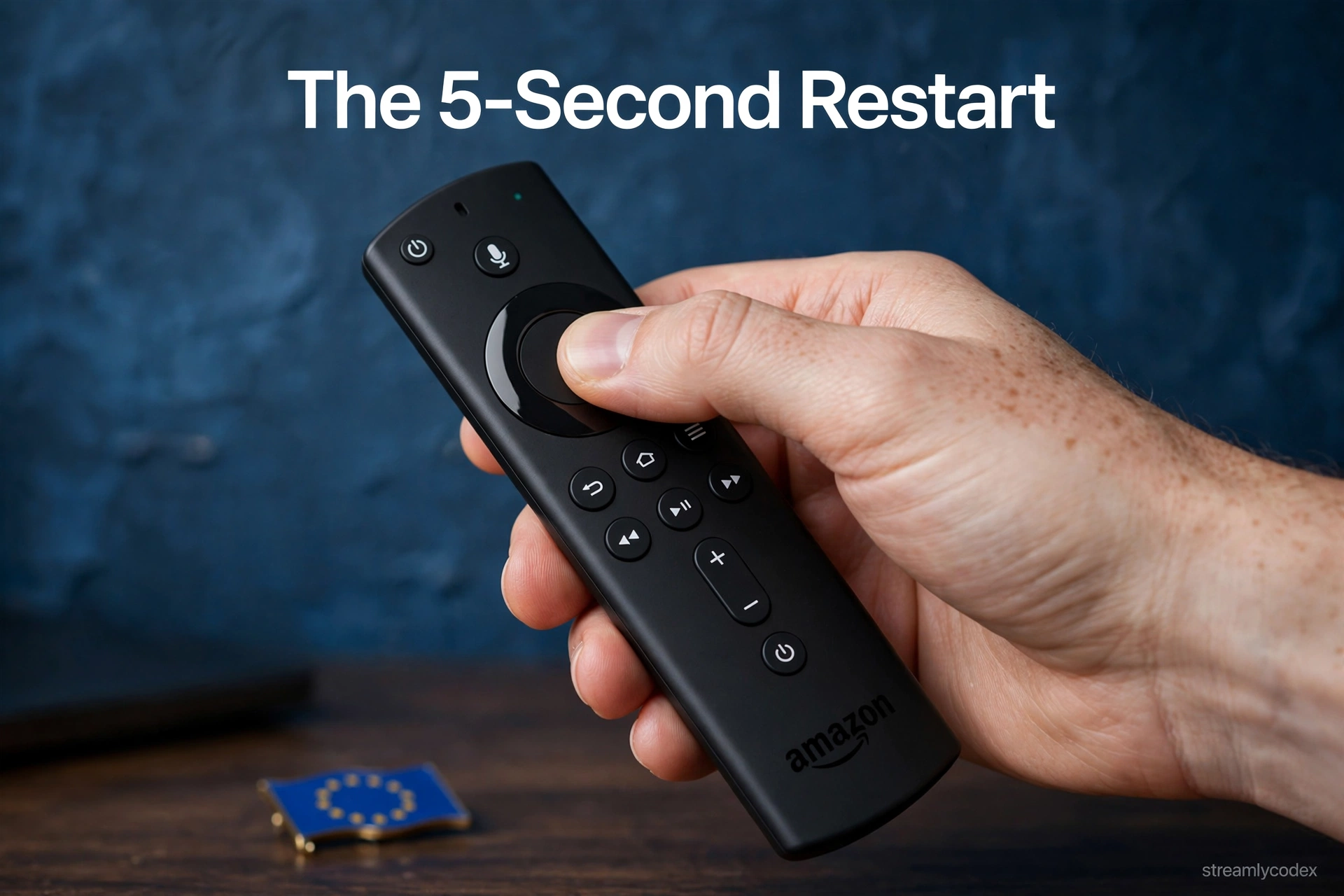
A Fire TV Stick rarely truly powers off; it mostly sleeps, so glitchy background processes can linger for weeks. A proper restart clears them.
- Remote shortcut: hold Select (centre) + Play/Pause for about 5 seconds until the stick restarts.
- Menu path: Settings > My Fire TV > Restart. If frozen, unplug from the wall for 30 seconds. Always use the wall socket, not the TV’s USB port, which can underpower the stick.
Clear All App Caches
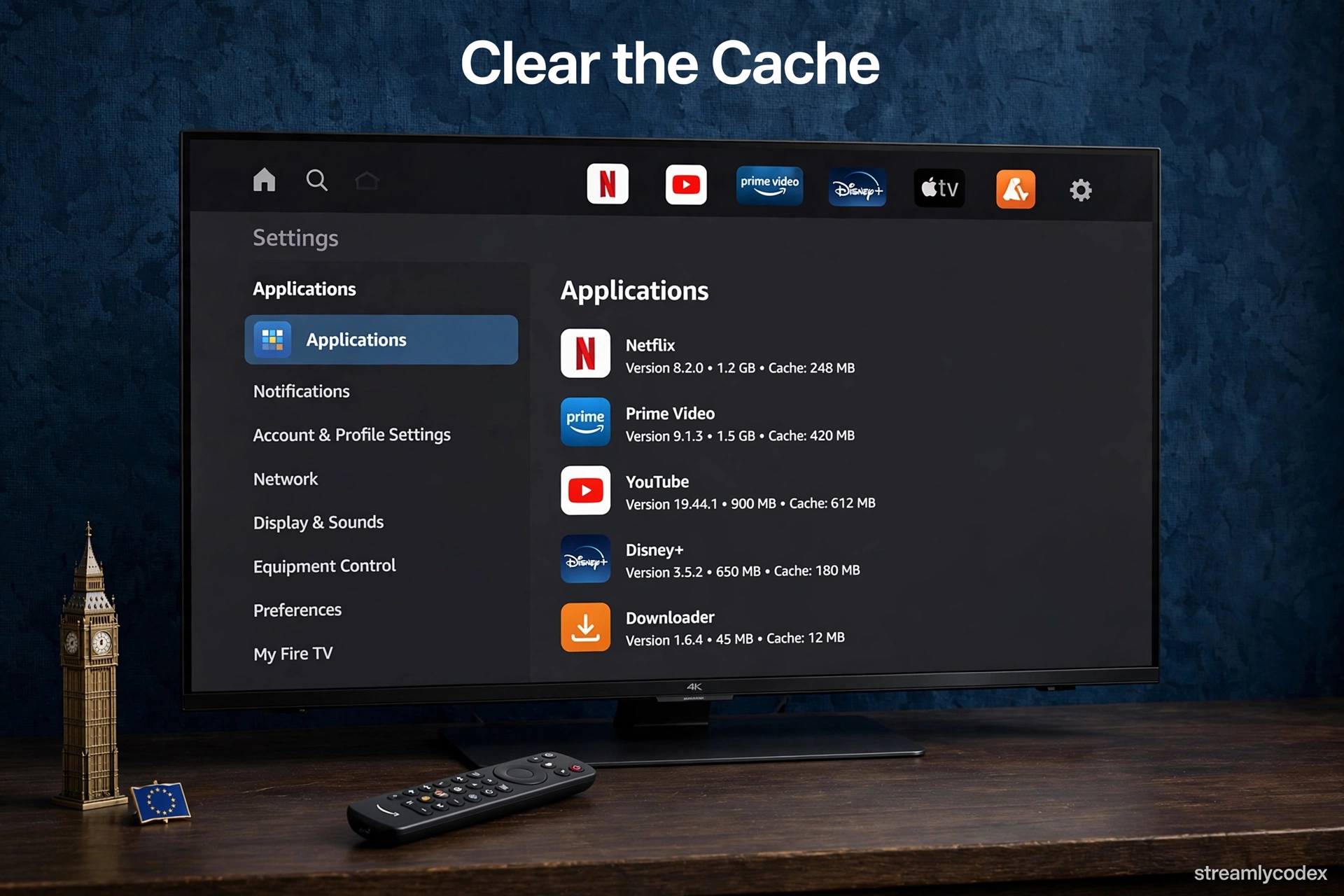
Streaming apps store thumbnails and temporary data as cache, which quietly eats gigabytes on a device with only 8 GB. Clearing it is safe: logins and settings are untouched.
- Go to Settings > Applications > Clear All Application Caches, then Confirm.
- On older software, clear per app: Settings > Applications > Manage Installed Applications > pick an app > Clear Cache. Start with YouTube, Netflix and Prime Video.
Uninstall Apps You Never Open
Installed apps consume storage and sometimes run background services even when never launched. Games are the worst offenders.
- Highlight the app on the home screen, hold the menu button (three lines), and choose Uninstall.
- If an app has not been opened in a month, remove it. Reinstalling later takes seconds.
Free Up Storage Space
Fire OS gets visibly sluggish when free storage drops low. Check yours at Settings > My Fire TV > About > Storage.
- Keep at least 1 GB free. Below roughly 500 MB, expect lag, update errors and crashes.
- In Manage Installed Applications, sort by size and clear data on the biggest apps you rarely use (this logs you out of that app).
Turn Off Autoplay Videos on the Home Screen
The home screen auto-plays video previews, hogging CPU and bandwidth in the background.
- Go to Settings > Preferences > Featured Content and turn off Allow Video Autoplay and Allow Audio Autoplay.
Switch Off Unused Features and Background Apps
Fire OS runs background services most people never use. Trimming them frees RAM.
- Data Monitoring: Settings > Preferences > Data Monitoring > Off (unless on a capped connection).
- Force stop idle apps: Settings > Applications > Manage Installed Applications > pick an app > Force Stop. Or hold Home and choose Close All.
- Privacy: Settings > Preferences > Privacy Settings > turn off Device Usage Data and Collect App Usage Data.
Update Fire OS and Your Apps
Outdated firmware can cause memory leaks that feel exactly like a slow device.
- Go to Settings > My Fire TV > About > Check for Updates, install, then restart.
- If slowness started right after an update, restart once more and clear caches; post-update background tasks usually settle within a day.
Switch to 5GHz Wi-Fi or Ethernet
Much “slowness” is really slow networking: buffering streams make the whole stick feel sluggish.
- In Settings > Network, connect to your router’s 5 GHz network instead of 2.4 GHz.
- For maximum stability, use Amazon’s official Ethernet adapter for Fire TV.
Move the Router Closer and Cut Interference
Distance and obstacles kill Wi-Fi speed, and the stick sits hidden behind the TV.
- Move the router closer to the TV, out in the open rather than inside a cabinet.
- Restart the router itself (unplug 30 seconds) if speeds have degraded.
Factory Reset as a Last Resort
If nothing above helped, a factory reset wipes the stick back to out-of-the-box state. The price: every app must be reinstalled and every login re-entered.
- Go to Settings > My Fire TV > Reset to Factory Defaults and confirm.
- After the reset, install apps one at a time and skip the ones from fix 3.
Check for Overheating
A stick wedged behind a hot TV with no airflow thermal-throttles: the chip slows itself to avoid damage, which looks exactly like a slow device.
- Use the HDMI extender from the box to move the stick away from the TV’s heat and give it airflow.
Know When to Upgrade an Old Stick
First-generation sticks have slower processors and less RAM than modern apps expect. No cache-clearing gives a 2016 stick the speed of a current one.
- If the stick is 5+ years old and still slow after a factory reset, the hardware is the bottleneck.
- See the Fire TV Stick 4K vs 4K Max comparison before buying.
All 12 Fixes: Quick Reference
| # | Fix | Time needed | Difficulty |
|---|---|---|---|
| 1 | Restart properly | 2 min | Easy |
| 2 | Clear all app caches | 1 min | Easy |
| 3 | Uninstall unused apps | 5 min | Easy |
| 4 | Free up storage (1 GB+ free) | 10 min | Easy |
| 5 | Turn off autoplay videos | 1 min | Easy |
| 6 | Switch off unused features | 5 min | Easy |
| 7 | Update Fire OS and apps | 10 min | Easy |
| 8 | Use 5GHz Wi-Fi or Ethernet | 10 min | Medium |
| 9 | Move router closer | 15 min | Easy |
| 10 | Factory reset | 30 min | Medium |
| 11 | Check for overheating | 5 min | Easy |
| 12 | Upgrade an old stick | – | Easy |
Fire TV Slow: Your Questions Answered
Why is my Fire TV Stick suddenly slow?
Usually a full app cache, low free storage, or too many background apps. Clear all app caches first (Settings > Applications > Clear All Application Caches).
Will clearing the cache delete my apps or log me out?
No. Clear Cache only removes temporary files. Only Clear Data resets an app and logs you out.
How much free storage does a Fire TV Stick need?
Keep at least 1 GB free (Settings > My Fire TV > About > Storage). Below about 500 MB, expect lag and crashes.
Should I factory reset my slow Fire TV Stick?
Only as a last resort. Try the cache clear, restart, uninstalls and updates first.
Do old Fire TV Sticks just get slower over time?
They feel slower because apps get heavier while the hardware stays the same. A stick over 5 years old may simply need replacing.
Will an Ethernet adapter make my Fire TV faster?
For streaming, yes. A wired connection eliminates buffering from weak Wi-Fi, which is often mistaken for a slow device.
Can overheating slow down a Fire TV Stick?
Yes. A stick trapped behind a hot TV throttles its processor to cool down. Use the HDMI extender from the box for airflow.
Related Guides
Final Verdict: Fixing a Slow Fire TV
Start with the 30-second cache clear, then a proper restart, then uninstall the apps you forgot existed. Those three steps cure the overwhelming majority of slow Fire TV Sticks.
My final word: a slow Fire TV Stick is a maintenance problem, not a broken device. Ten minutes of spring cleaning, twice a year, keeps it fast.