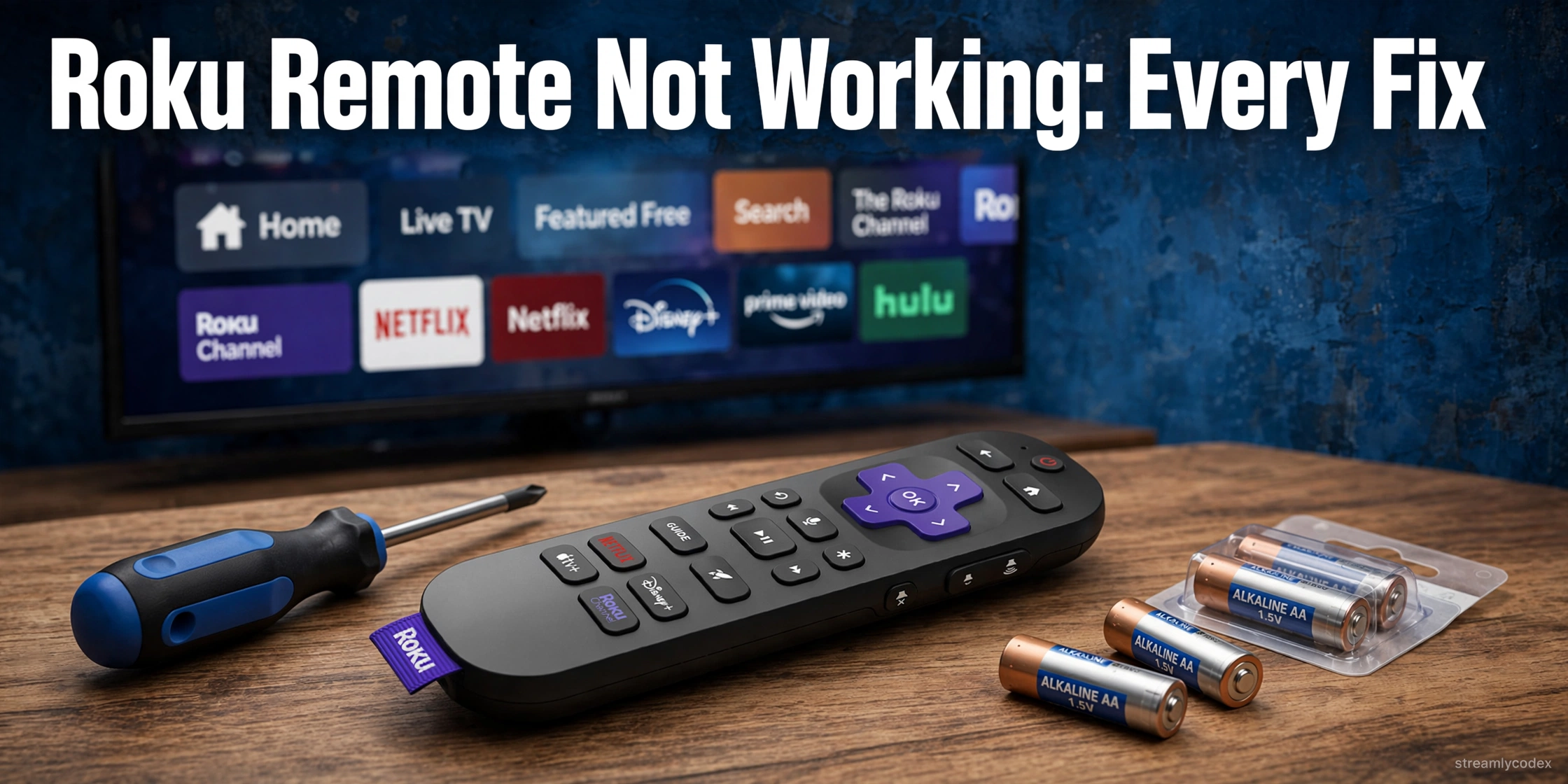
Roku remote not working? Dead buttons, flashing lights, pairing that never completes: it is almost always fixable, and the fix depends on which remote you have. Roku makes two kinds, and they fail in different ways. Work through these fixes in order and your remote will almost certainly come back to life.
Roku Remote Not Working: The 60-Second Answer
Step one: figure out which remote you have. A simple IR remote needs fresh batteries and a clear line of sight. A voice remote needs re-pairing via its pairing button.
The universal fix: remove the batteries, unplug the Roku for 10 seconds, plug it back in, wait for the home screen, then reinsert the batteries. This fixes most dead remotes.
Stuck right now? Install the free Roku mobile app. It works as a full remote over Wi-Fi and gets you watching while you fix the physical remote.
First: Which Roku Remote Do You Have?
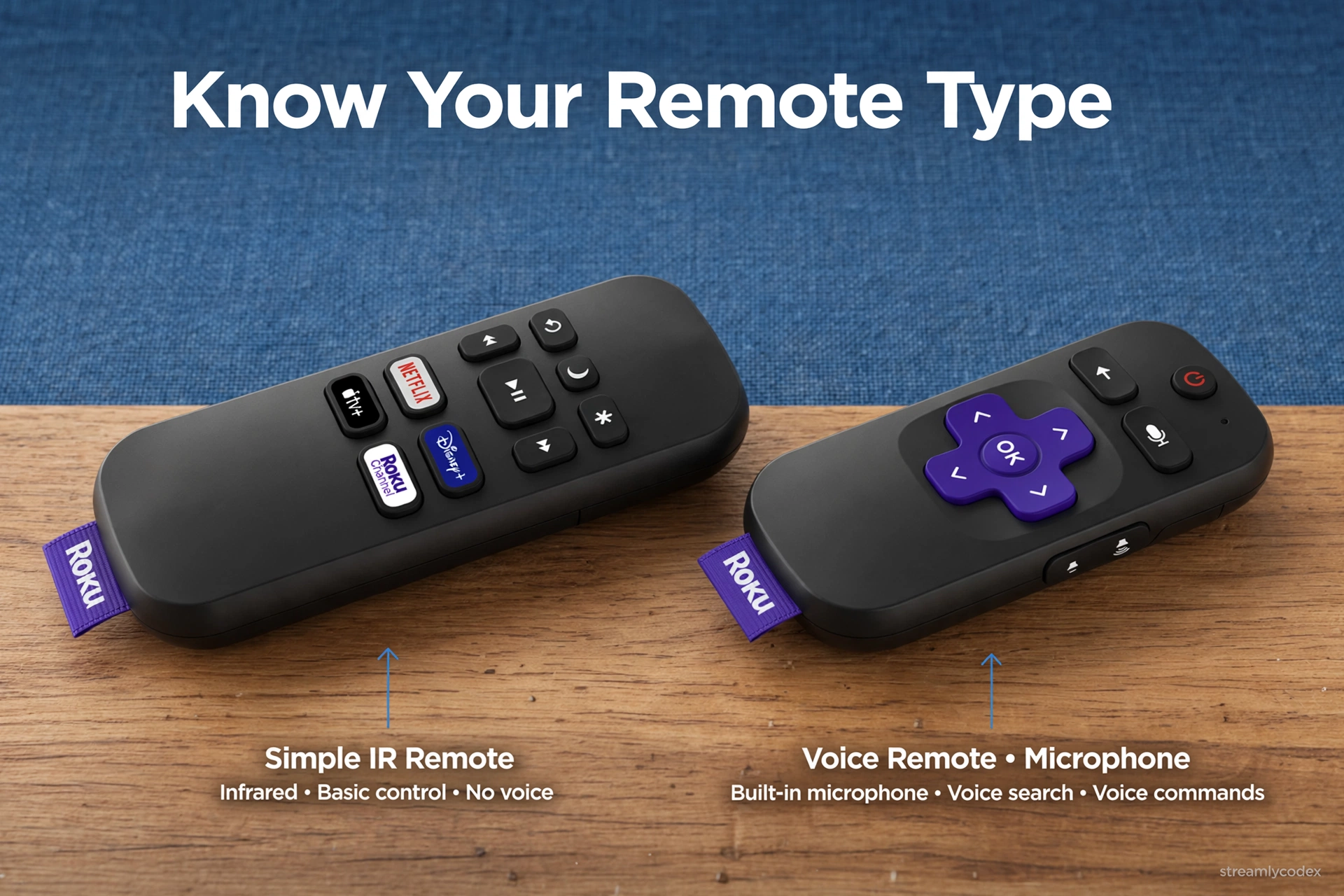
| Simple Remote (IR) | Voice Remote (Wi-Fi) | |
|---|---|---|
| How it connects | Infrared, point at the TV | Wi-Fi Direct, no aiming needed |
| Pairing button | No | Yes, in battery compartment or on back |
| Voice search | No | Yes |
| Comes with | Roku TVs, Express | Streaming Stick, Ultra, Premiere |
| Main failure mode | Blocked signal, dead batteries | Broken pairing |
This matters because half the pairing fixes below do not apply to IR remotes at all. Check yours before you start.
Fix 1: Fresh Alkaline Batteries
The number one fix. Remove the old batteries and insert brand-new alkaline batteries, not rechargeables. Rechargeables run at a lower voltage and cause more remote problems than people expect. Check the metal contacts in the compartment are clean and springy.
Fix 2: Clear the Infrared Path (Simple Remotes)
If you have an IR remote, it must see the TV. Move anything blocking the front of the TV or Roku box: soundbars, decorations, even a stack of remotes. Point the remote directly at the device’s front panel and try again.
Fix 3: Power Cycle Both Devices
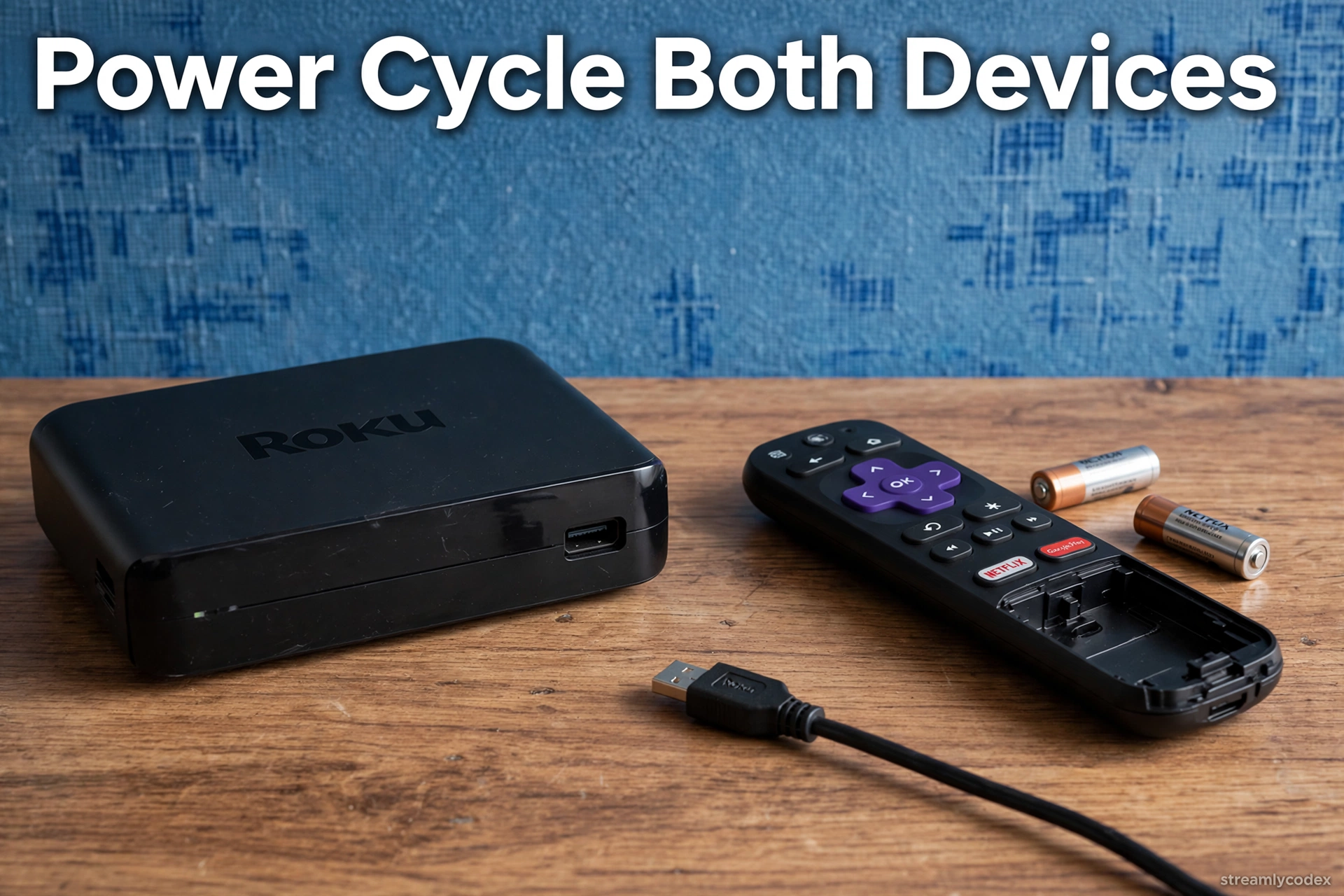
This clears temporary glitches in both the Roku and the remote:
- Unplug your Roku device from power
- Remove the batteries from the remote
- Wait at least 10 seconds (60 is better)
- Plug the Roku back in
- Wait for the home screen to appear
- Reinsert the batteries and let the remote pair
Fix 4: Re-Pair the Voice Remote
If the remote has a pairing button and the Roku does not see it, re-pair manually:
- Open the battery compartment and find the pairing button
- Press and hold it for 5 seconds until the status light flashes green
- Hold the remote close to the Roku device
- Wait for the “Pairing remote” screen, it takes 30 seconds or less
Fix 5: Reset an Unresponsive Voice Remote
For a remote that will not respond at all, do the full reset:
- Remove the batteries
- Unplug the Roku device
- Wait 5 seconds, plug the Roku back in
- When the Roku logo appears, reinsert the batteries
- Press and hold the pairing button for 20 seconds until the light flashes rapidly
- Let it restart and pair
Fix 6: No Pairing Button? Use Back + Home
Some Roku remotes have no pairing button. Instead, press and hold Back and Home together for 5 seconds until the status light flashes. For rechargeable voice remotes, hold them for 20 seconds to restart, then charge for at least 5 hours with the original cable.
Fix 7: Fix HDMI Interference (Streaming Stick)
Roku Streaming Sticks sit behind the TV where the HDMI port can interfere with the remote’s Wi-Fi Direct signal. Roku gives away a free HDMI extender cable for exactly this: order one at the Roku site and move the stick away from the port. Metal objects near the stick cause the same problem, move them away.
Fix 8: Reduce 2.4GHz Wi-Fi Interference
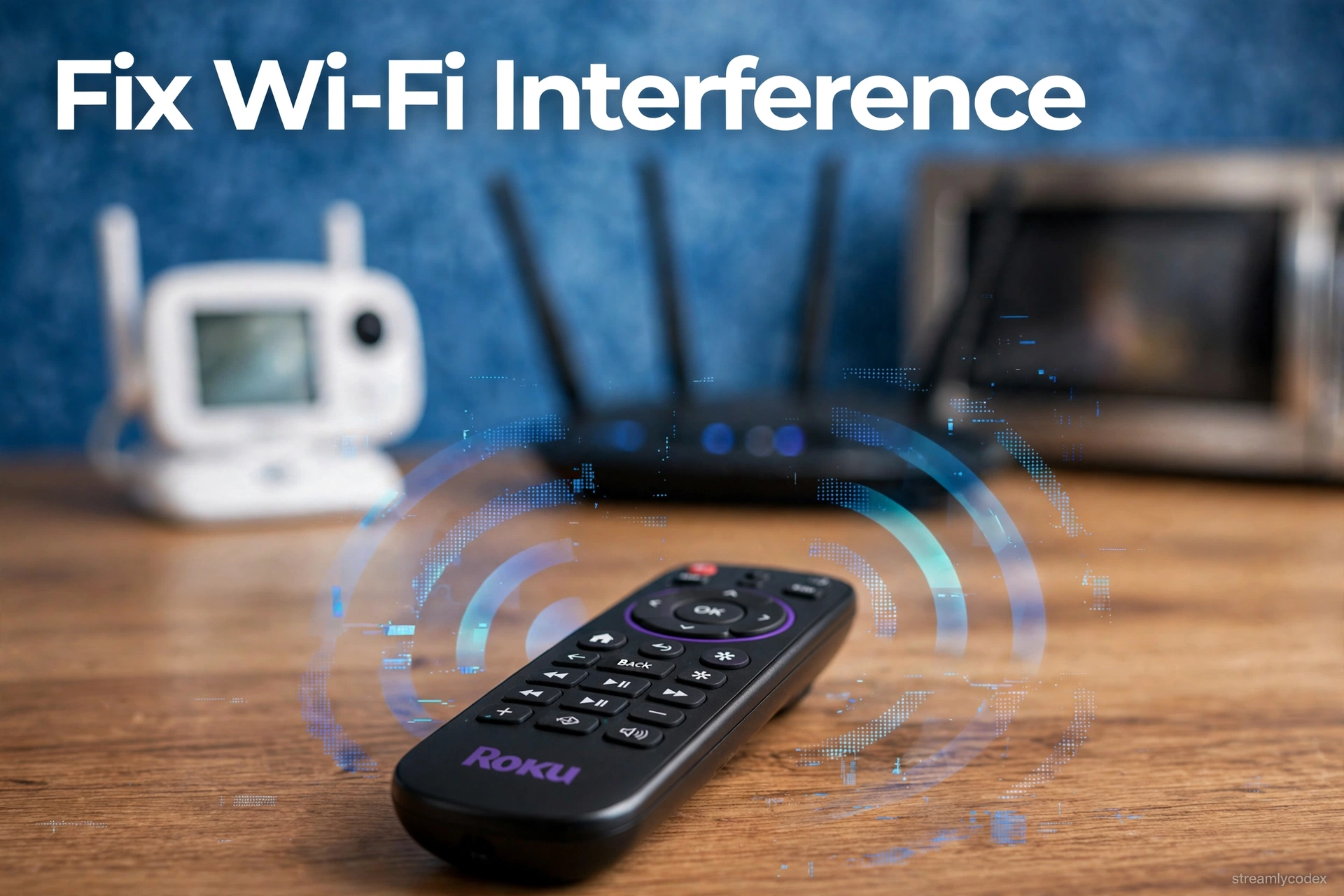
Roku voice remotes use the crowded 2.4GHz band. Baby monitors, wireless cameras, microwaves, cordless phones and Bluetooth speakers can all break pairing. Temporarily switch these off while you pair, then bring them back one at a time to find the culprit.
Fix 9: Use the Roku Mobile App as a Remote
While you troubleshoot, install the free Roku app (iOS and Android). On the same Wi-Fi network, it works as a full remote with voice search. It also lets you reach Settings to check for firmware updates and manage devices without the physical remote.
Fix 10: Update the Roku Firmware
Outdated firmware occasionally breaks remote compatibility. Using the mobile app as a remote, go to Settings > System > System Update > Check Now and install any update. Then try pairing the physical remote again.
Fix 11: Factory Reset the Roku Device (Last Resort)
If nothing else works, reset the Roku itself. This erases all settings and accounts but often resolves stubborn pairing failures. Use the mobile app to reach Settings > System > Advanced System Settings > Factory Reset, or press the physical reset button on the device. Then pair the remote as a new device.
Roku Remote Fixes: Quick Reference
| Symptom | Try first |
|---|---|
| Nothing responds at all | Fix 1 (batteries), then Fix 3 (power cycle) |
| Voice remote will not pair | Fix 4 (re-pair), then Fix 5 (reset) |
| Simple remote only works sometimes | Fix 2 (clear IR path) |
| Remote worked, then stopped | Fix 8 (Wi-Fi interference) |
| Streaming Stick remote flaky | Fix 7 (HDMI extender) |
| No pairing button on remote | Fix 6 (Back + Home) |
| Need to watch TV now | Fix 9 (mobile app) |
| Nothing works at all | Fix 11 (factory reset) |
Roku Remote Not Working: Your Questions Answered
How do I reset my Roku remote?
Remove the batteries, unplug the Roku for 10 seconds, plug it back in, wait for the home screen, reinsert the batteries, then hold the pairing button for 20 seconds. See Fix 5 for the full sequence.
Where is the pairing button on a Roku remote?
Usually inside the battery compartment. On the Voice Remote Pro it is on the back of the remote. Some remotes have no pairing button: use Back + Home instead (Fix 6).
Why is my Roku remote blinking but not working?
A blinking status light means the remote is trying to pair but failing. Hold the remote close to the Roku and re-pair (Fix 4). Check for 2.4GHz interference (Fix 8).
Can I use my phone as a Roku remote?
Yes. The free Roku app on iOS and Android works as a full remote over Wi-Fi, including voice search. It is the best stopgap while you fix the physical remote.
Do Roku remotes need batteries or charging?
Most use replaceable AAA batteries: use fresh alkaline, not rechargeable. The Voice Remote Pro is rechargeable via USB-C; if it dies, charge it for at least 5 hours.
Why does my Roku remote only work sometimes?
For IR remotes, something is intermittently blocking the signal. For voice remotes, it is usually Wi-Fi interference or low batteries. See Fixes 2 and 8.
My Roku Streaming Stick remote keeps disconnecting. Why?
HDMI interference from the port behind your TV. Get Roku’s free HDMI extender cable and move the stick away from the port (Fix 7).
Should I just buy a new Roku remote?
Try the fixes first: most dead remotes recover. If you do buy one, check compatibility with your exact Roku model. See my budget streaming guide if the whole device is due for an upgrade.
Related Guides
- 👉 Roku vs Apple TV: Which Is Better?
- 👉 Best Budget Streaming Device UK
- 👉 Fire TV Stick Not Working: 15 Fixes
- 👉 Fire TV Stick 4K vs 4K Max
Final Word: Roku Remote Not Working
Roku remote trouble almost always has a boring fix: fresh batteries, a clear signal path, a power cycle, or a re-pair. Identify your remote type first and you will skip half the wrong fixes.
And remember the free backup: the Roku mobile app works as a full remote any time the physical one lets you down.