Fire TV Stick not working? Black screen, stuck on the Amazon logo, remote dead, apps crashing: I have seen it all, and almost all of it is fixable in minutes. Work through these 15 fixes in order, from the 60-second checks to the last-resort reset. One of them will almost certainly bring your stick back to life.
Fire TV Stick Not Working: The 60-Second Answer
Fix #1 solves most cases: plug the stick into a wall outlet using Amazon’s own adapter, not your TV’s USB port. TV USB ports deliver too little power, which causes most boot loops and freezes.
Fix #2 is the universal reset: unplug everything for 60 seconds, then plug it back in. It clears more glitches than any other single step.
Work in order. These fixes go from quickest to most drastic. Do not factory reset (fix #15) until you have tried the rest.
Fix 1: Plug Into a Wall Outlet, Not the TV’s USB
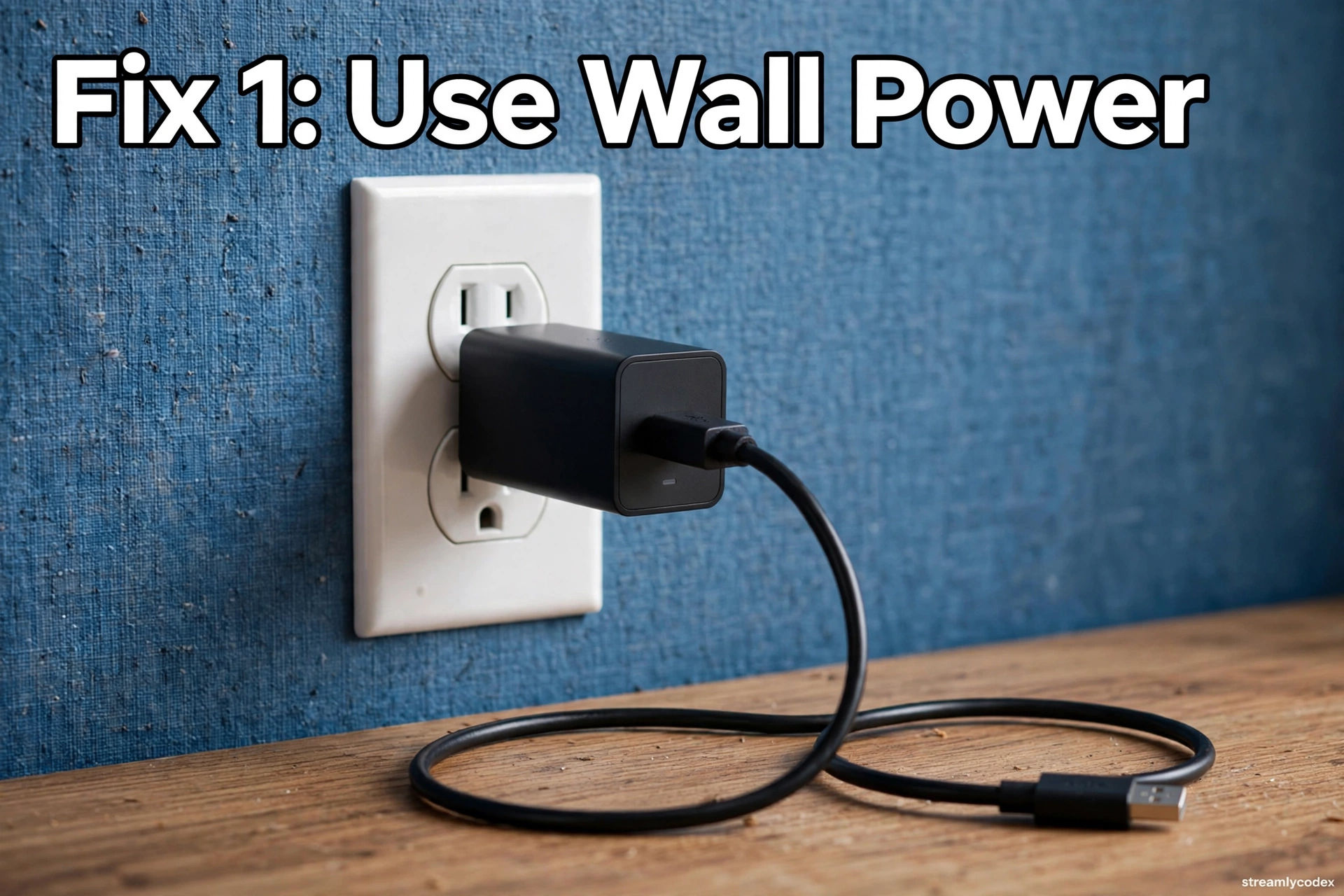
This is the number one cause of Fire TV Stick problems. TV USB ports typically deliver only 0.5A, but the stick needs 1.0–1.8A when booting apps. Underpowered, it brownouts and restarts in a loop or freezes on the Amazon logo.
- Unplug the USB cable from your TV
- Plug it into the original Amazon wall adapter
- Plug the adapter into a wall outlet
Fix 2: The 60-Second Full Restart
The universal fix for frozen sticks and glitchy apps.
- Unplug the Fire TV Stick from power AND from HDMI
- Unplug your TV from the wall too
- Wait a full 60 seconds
- Plug the TV back in, then the stick
Fix 3: Try a Different HDMI Port
Sometimes the port is the problem, not the stick. Move the Fire TV Stick to a different HDMI port on your TV. If you use the HDMI extender that came in the box, try connecting the stick directly instead, and vice versa.
Fix 4: Reset the Resolution (Black Screen Fix)
If your TV shows “No Signal” or a black screen, the stick may be outputting a resolution your TV cannot handle. Use the secret resolution reset:
- Press and hold Up and Rewind together for 10 seconds
- The stick will cycle through 720p, 1080p and 4K, pausing at each
- When your home screen appears, press Select to lock that resolution
Fix 5: Re-Pair the Remote
If the stick works but the remote does nothing, re-pair it:
- Make sure the Fire TV Stick is powered on
- Hold the Home button for 10 seconds
- Wait for the pairing confirmation on screen
Fix 6: Replace the Remote Batteries
Weak batteries cause more “dead remote” reports than anything else. Put in fresh alkaline batteries, and check the metal springs in the battery compartment are making full contact. Cheap or old batteries are a classic culprit.
Fix 7: Use the Remote’s LED Troubleshooting Mode
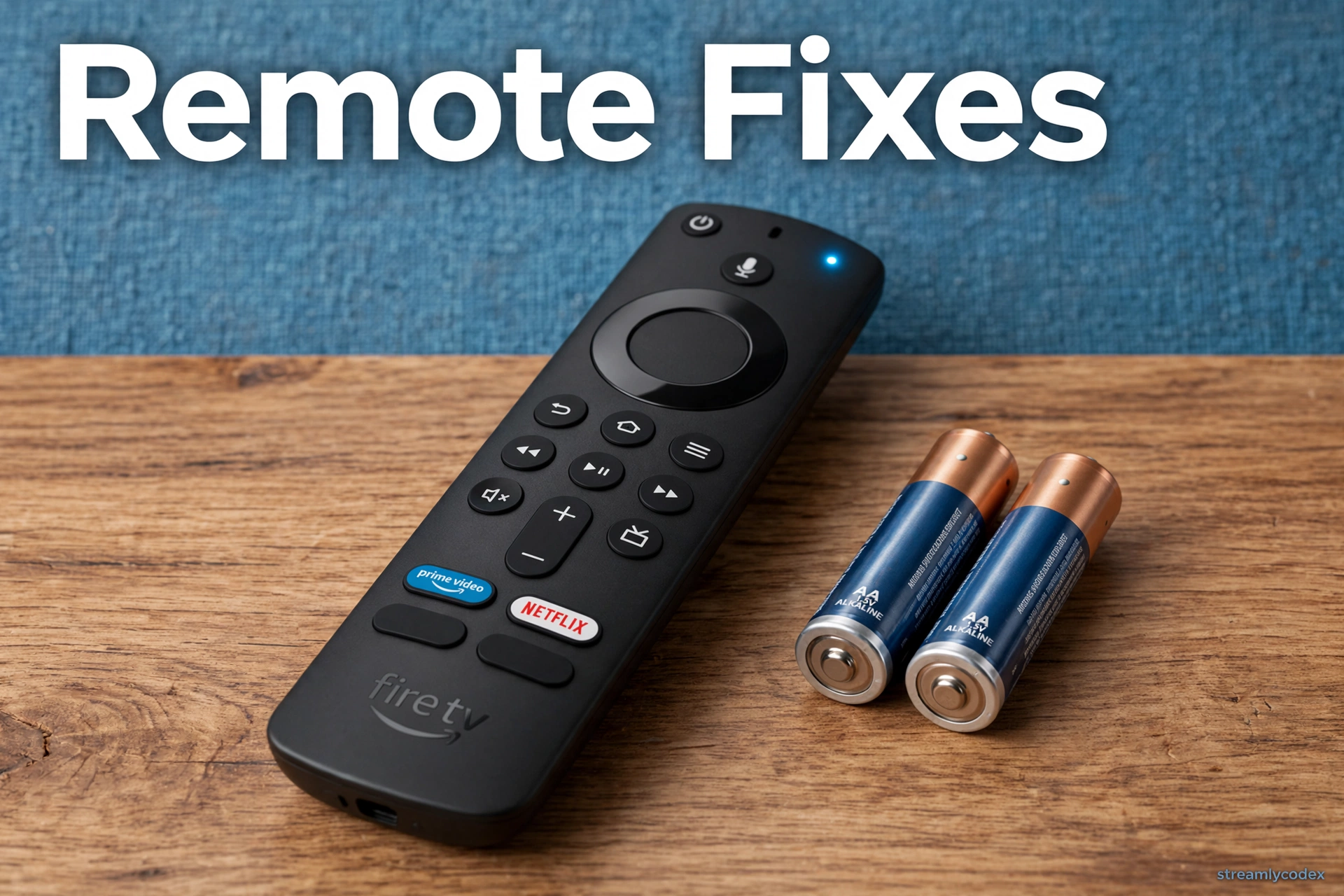
Newer Fire TV remotes have a built-in diagnostic mode. Here is how to read it:
- Press Rewind and Right together for 3 seconds
- Press the Menu button (three lines)
- A green LED confirms troubleshooting mode is on
- Press any button and read the LED:
- Fast blinking red: hardware issue, reset and re-pair
- Slow blinking red: low battery, replace them
- Orange flash: remote not paired, hold Home 10 seconds
- White flash: the Fire TV Stick is powered off
- Blue flash: remote is fine and paired
Fix 8: Restart Your Router and Check Wi-Fi
A blank home screen or endless loading spinner is often Wi-Fi, not hardware. Restart your router, then check the stick is on the right network with the right password. If you recently changed routers, try a phone hotspot temporarily to confirm Wi-Fi is the issue. Fire TV sticks can be picky between 2.4GHz and 5GHz bands.
Fix 9: Clear the App Cache
If one app crashes or freezes while the rest work fine, clear its cache:
- Go to Settings > Applications > Manage Installed Applications
- Select the problem app
- Choose Force Stop, then Clear Cache
Fix 10: Force Stop Misbehaving Apps
Apps running in the background can slow the whole stick down. In the same Manage Installed Applications menu, force stop apps you are not using, especially heavy ones. A sluggish stick is often just an overloaded one.
Fix 11: Check for System Updates
Failed or pending updates cause crashes and stuck loading screens. Go to Settings > My Fire TV > About > Check for System Update and install anything available. Keep the stick plugged in and do not unplug it during an update.
Fix 12: Disable HDMI-CEC Conflicts
If your stick misbehaves after you got a new TV or moved house, HDMI-CEC (the feature that lets devices control each other over HDMI) may be conflicting. Turn CEC off in your TV’s settings and see if the stick settles down.
Fix 13: Fix No Sound (Dolby Digital Plus)
Picture but no sound? The stick’s audio output may not match your TV or soundbar:
- Go to the Home screen
- Open Settings, find the Dolby Digital Output option
- Set Dolby Digital Plus to Off
Also check your TV is not muted and the volume is up. Simple, but it catches people out.
Fix 14: Uninstall and Reinstall the Problem App
If one app keeps failing after cache clearing, uninstall it completely and reinstall from the Amazon Appstore. A corrupted install survives cache clears but not a fresh install.
Fix 15: Factory Reset (Last Resort)
Only do this if nothing else worked. A factory reset erases all apps, settings and logins.
- If you can reach settings: Settings > My Fire TV > About > Factory Reset
- If you cannot: hold Back and Right together for 10 seconds, then confirm
Fire TV Stick Fixes: Quick Reference
| Symptom | Try first |
|---|---|
| Stuck on Amazon logo / boot loop | Fix 1 (wall power), then Fix 2 |
| Black screen / No Signal | Fix 3 (HDMI port), then Fix 4 (resolution) |
| Remote not responding | Fix 6 (batteries), then Fix 5 (re-pair) |
| One app crashes | Fix 9 (clear cache), then Fix 14 (reinstall) |
| Everything is slow | Fix 10 (force stop), then Fix 11 (updates) |
| No sound | Fix 13 (Dolby Digital Plus off) |
| Nothing loads / spinner | Fix 8 (router / Wi-Fi) |
| Nothing works at all | Fix 15 (factory reset) |
Fire TV Stick Not Working: Your Questions Answered
Why is my Fire TV Stick stuck on the Amazon logo?
Almost always a power problem. The stick is probably plugged into your TV’s USB port, which cannot deliver enough power. Plug it into a wall outlet with Amazon’s own adapter (Fix 1).
How do I restart a Fire TV Stick that is frozen?
Unplug it from power and HDMI for a full 60 seconds, then plug everything back in. If the remote still works, you can also go to Settings > My Fire TV > Restart.
Why is my Fire TV Stick remote not working?
Replace the batteries first, then hold the Home button for 10 seconds to re-pair. Newer remotes have an LED diagnostic mode (Fix 7) that tells you exactly what is wrong.
Why does my Fire TV Stick keep restarting?
Underpowered USB supply is the cause in most cases. Use the wall adapter. If it persists, overheating or a failing adapter are the next suspects.
How do I fix the black screen on Fire TV Stick?
Try a different HDMI port first, then reset the output resolution by holding Up and Rewind together for 10 seconds (Fix 4).
Will a factory reset fix my Fire TV Stick?
It fixes software corruption, but it wipes everything and should be your last resort. Try fixes 1–14 first. See my Fire TV Stick 4K vs 4K Max guide if you are considering a replacement instead.
Why do apps keep crashing on my Fire TV Stick?
Clear the app’s cache (Settings > Applications > Manage Installed Applications), force stop background apps, and check for system updates. Reinstall the app if it persists.
Can I use my TV’s USB port to power the Fire TV Stick?
Amazon says no, and experience agrees. TV USB ports deliver too little power and cause boot loops, freezes and random restarts. Always use the wall adapter.
Related Guides
- 👉 Fire TV Stick 4K vs 4K Max
- 👉 Amazon Fire TV Cube Review
- 👉 Best Budget Streaming Device UK
- 👉 Roku vs Apple TV
Final Word: Fire TV Stick Not Working
Nine times out of ten, a Fire TV Stick that “stopped working” needs wall power and a 60-second restart, not a replacement. Work through the fixes in order, and only reach for the factory reset when everything else has failed.
If your stick is old and slow even when it works, it may simply be time. My Fire TV Stick 4K vs 4K Max comparison will help you pick the replacement.