
Table of Contents
ToggleIntroduction
Google TV devices like Chromecast with Google TV are easy to set up, but European users sometimes face small issues related to Wi-Fi stability, region settings, app availability, and streaming quality (4K HDR / Dolby Vision).
In this step-by-step guide, you’ll learn exactly how to set up Google TV in Europe in 2026 — from connecting the device to your TV to installing apps, adjusting picture settings, and enabling the best features.
This guide works for:
Chromecast with Google TV (HD)
Chromecast with Google TV (4K)
Other Google TV streaming devices running Google TV interface
📦 What You Need Before Setup
Before starting, make sure you have:
A Google TV device (Chromecast or Google TV streamer)
HDMI-compatible TV (4K HDR recommended)
Stable Wi-Fi internet connection
A Google account (Gmail)
Smartphone (Android recommended, iPhone also works)
✅ If your TV supports 4K HDR, use an HDMI port labeled “HDMI 2.0 / 4K”.
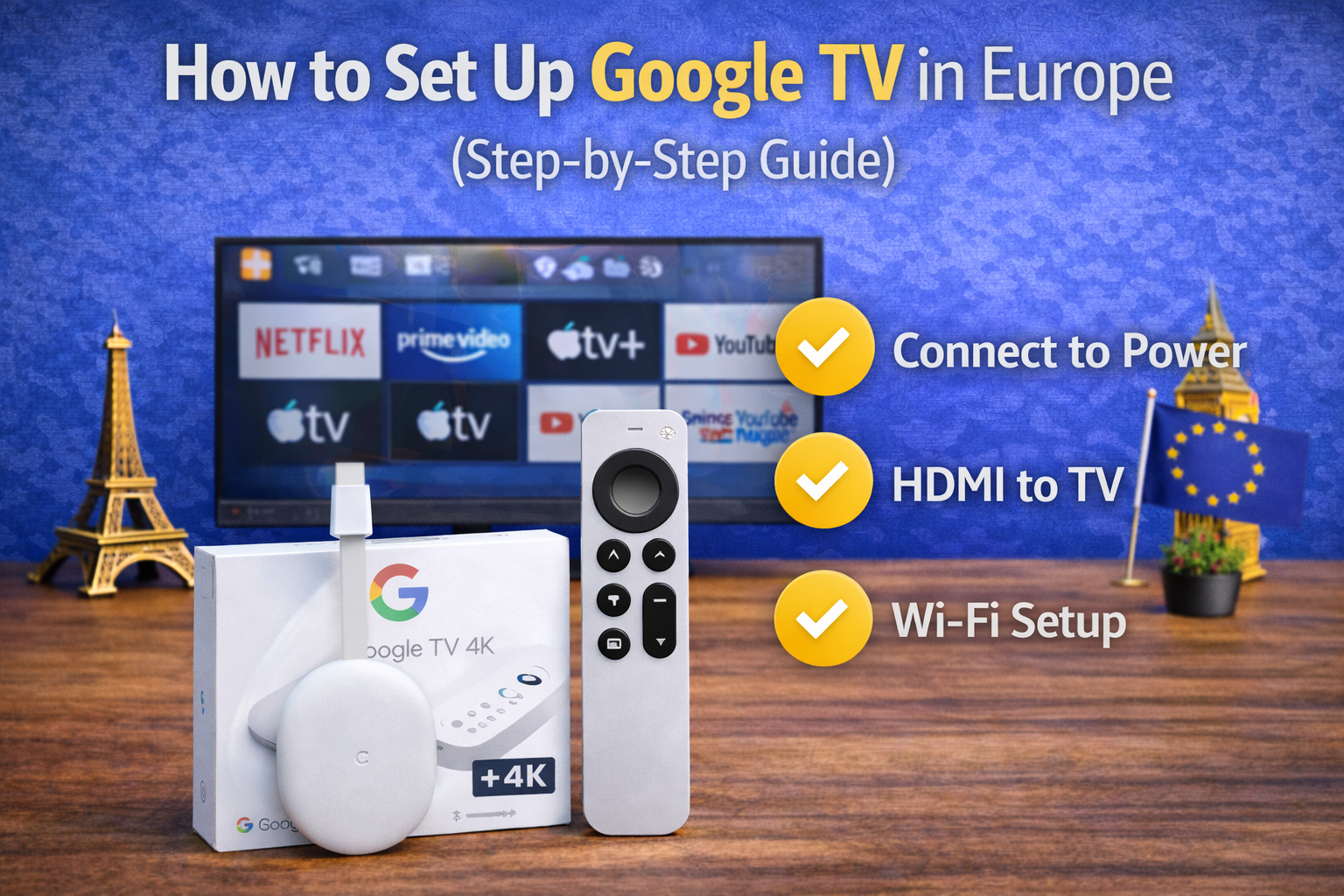
🔌 Step 1: Connect Google TV to Your TV
Plug the device into an HDMI port on your TV.
Connect the power cable to the device.
Plug the adapter into a wall outlet (do not rely on TV USB power if possible).
Turn on your TV and select the correct HDMI input.
You should now see the Google TV welcome screen.
🎮 Step 2: Pair the Remote
Most Google TV devices will ask you to pair the remote.
Follow on-screen instructions
Press and hold the pairing buttons if required
Confirm when pairing completes
If the remote does not pair:
bring it closer to the device
replace batteries
restart the device (unplug + plug back)
🌍 Step 3: Choose Language and Region
Select:
Your language
Your country/region
This affects:
local app availability
content recommendations
Google services behavior
✅ Always select your real European country for the best results.
📱 Step 4: Set Up Using Your Phone (Recommended)
Google TV setup is easiest with a phone.
Choose “Set up with your phone”
Open the Google Home app (or follow device prompt)
Sign in with your Google account
Confirm the pairing code
Allow permissions (Wi-Fi + device setup)
This automatically transfers:
✔ Google account
✔ Wi-Fi settings
✔ basic preferences
📶 Step 5: Connect to Wi-Fi
If not done through the phone setup:
Select your Wi-Fi network
Enter the password
Confirm connection
Tip:
If your router has both 2.4GHz and 5GHz:
2.4GHz = better range
5GHz = faster speeds
If the TV is far from the router, 2.4GHz may be more stable.
🔄 Step 6: Install Updates
Google TV will automatically download system updates.
Allow updates to finish before installing apps.
This improves:
✔ stability
✔ app compatibility
✔ security
The device may restart.
📺 Step 7: Install Streaming Apps in Europe
After setup:
Open Google Play Store
Search apps
Install services you use
Common European apps include:
Netflix
Prime Video
Disney+
Apple TV+
YouTube
BBC iPlayer (UK)
ITVX
DAZN
Rakuten TV
Spotify
Availability may vary slightly by country, but Google TV generally supports a wide range across Europe.
🎬 Step 8: Set the Best Video Settings (4K / HDR / Dolby Vision)
Google TV usually detects your TV automatically.
To confirm:
Go to:
Settings → Display & Sound → Resolution
Recommended:
✅ Auto (best)
or
✅ 4K (if stable)
If your TV supports it:
enable Dolby Vision / HDR
If Dolby Vision looks overly bright or strange:
switch to HDR
or reduce color enhancements on your TV settings
🔊 Step 9: Improve Audio Settings (Dolby Atmos)
Go to:
Settings → Display & Sound → Advanced Sound Settings
If supported:
✅ Surround sound / Dolby Atmos: ON (Auto)
If you experience audio delay:
try switching audio format to Auto
restart the device
use TV eARC/ARC port for soundbar setups
🧠 Step 10: Enable Casting (Chromecast) Features
Google TV includes Chromecast functionality.
To confirm it’s working:
Make sure your phone is on same Wi-Fi
Open YouTube or Netflix on phone
Tap the Cast icon
Select your Google TV device
If cast doesn’t appear:
restart Wi-Fi
ensure device is visible in Google Home app
check “Guest Mode” settings (optional)
⚠️ Common Google TV Setup Problems (And Fixes)
Google TV Not Connecting to Wi-Fi
✔ Restart router
✔ Try 2.4GHz network
✔ Move router closer
✔ Unplug device for 30 seconds and reconnect
Apps Missing in Your Country
✔ Confirm region/country selection
✔ Confirm Google account region
✔ Restart device after region changes
Remote Not Working
✔ Replace batteries
✔ Re-pair remote
✔ Restart device
Lag or Slow Performance
✔ Uninstall unused apps
✔ Restart device
✔ Keep storage free
✔ Update system software
🏆 Final Thoughts
Setting up Google TV in Europe is simple, especially when using phone-based setup. For the best experience:
✅ Use stable Wi-Fi
✅ Allow updates
✅ Enable 4K/HDR if TV supports it
✅ Set audio to Auto for Dolby support
✅ Confirm Chromecast works
If you’re still choosing the best model, read
🔗 Related Set Up

