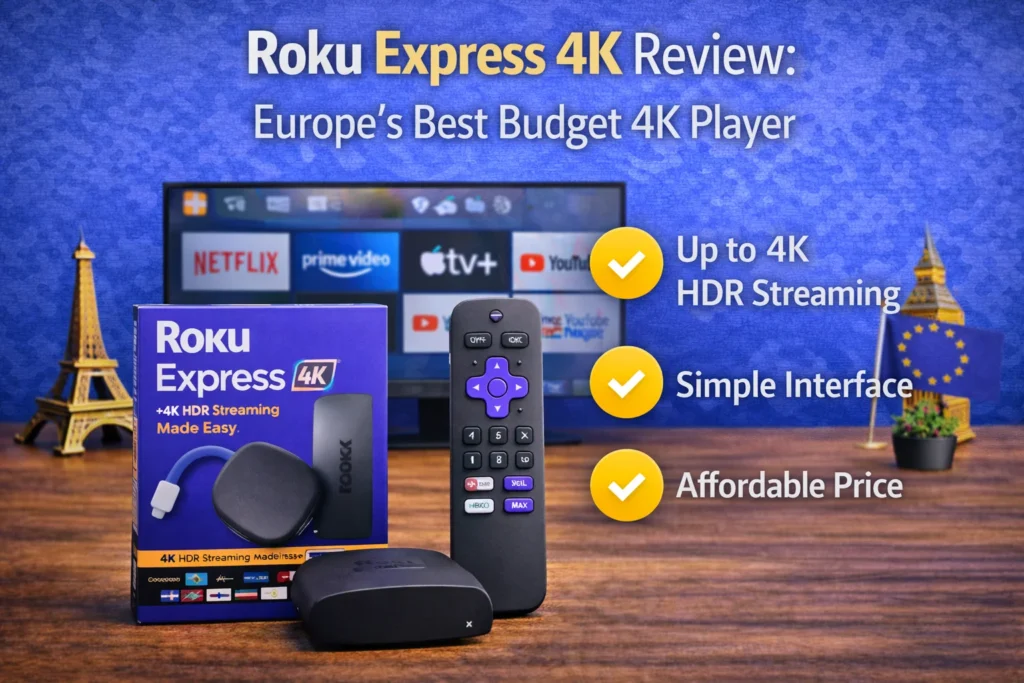
Setting up a Roku device in Europe is straightforward, but there are a few important steps to ensure everything works properly — especially when it comes to region settings, Wi-Fi configuration, and app availability.
Whether you’ve purchased a Roku Express 4K, Streaming Stick 4K, or another model, this guide walks you through the full setup process step-by-step.
This tutorial is written specifically for users in the UK and European countries.
Table of Contents
ToggleSee Roku devices on Amazon UK
general recommended model or your main buyer-guide product
View priceWhat You Need Before Setup
Before starting, make sure you have:
Your Roku device
HDMI-compatible TV
Stable Wi-Fi connection
Power adapter (included in the box)
A Roku account (you can create one during setup)
If your TV supports 4K HDR, ensure you’re using an HDMI port labeled “HDMI 2.0” or “4K”.
Step 1: Connect Roku to Your TV
Plug the Roku device into an HDMI port on your TV.
Connect the power cable.
Turn on your TV and select the correct HDMI input.
If you’re using the Streaming Stick 4K, it plugs directly into the HDMI port.
If you’re using Roku Express 4K, connect via HDMI cable.
Once powered on, you should see the Roku welcome screen.
Step 2: Pair the Remote
Most Roku voice remotes pair automatically.
If it doesn’t:
Insert batteries.
Hold the pairing button inside the battery compartment for 5 seconds.
Wait for the pairing message on screen.
Standard remotes do not require pairing.
Step 3: Select Language and Region
Choose:
Your preferred language
Your country (UK, Germany, France, etc.)
This step determines app availability in your region.
Step 4: Connect to Wi-Fi
Select your Wi-Fi network.
Enter your password.
Wait for connection confirmation.
If your router is far from your TV, consider models with long-range Wi-Fi like Roku Streaming Stick 4K.
See Roku Streaming Stick 4K with long-range Wi-Fi
This is valid because Roku explicitly positions Streaming Stick 4K with long-range Wi-Fi.
View discounted price
Step 5: Software Update
Roku will automatically check for system updates.
Let the device download and install updates. This ensures:
Latest features
App compatibility
Security patches
The device may restart during this step.
Step 6: Activate Your Roku Device
You’ll see an activation code on screen.
Visit roku.com/link
Enter the activation code
Log in or create a Roku account
Important:
Roku does not require a subscription fee. You only pay for streaming services like Netflix or Disney+ if you subscribe to them.
Step 7: Add Streaming Channels
After activation:
Go to “Streaming Channels”
Browse or search for apps
Add your preferred services
In Europe, common apps include:
Netflix
Prime Video
Disney+
BBC iPlayer (UK)
ITVX
YouTube
Apple TV+
Availability varies slightly by country.
Step 8: Adjust Display Settings (Important for 4K TVs)
Go to:
Settings → Display Type
Select:
4K HDR (if supported)
4K
1080p
Let Roku auto-detect your TV capabilities.
Common Setup Problems (And Fixes)
Roku Not Connecting to Wi-Fi
Restart router
Move router closer
Check password accuracy
Restart Roku
No Signal on TV
Check HDMI input
Try another HDMI port
Ensure power cable is connected properly
Activation Not Working
Double-check activation code
Ensure correct country selection
Disable VPN if enabled
Tips for European Users
Some apps may vary depending on country store region.
UK users should ensure region is set correctly for BBC iPlayer.
If moving between countries, you may need to update region settings.
Should You Use a VPN With Roku?
Roku itself does not support VPN apps directly.
If needed, VPN must be installed on:
Router level
Virtual router setup
This is usually only required for advanced users.
Final Thoughts
Setting up Roku in Europe is simple and usually takes less than 15 minutes.
Once connected, Roku provides a clean and reliable streaming experience with access to major European streaming services.
If you’re still deciding which Roku device to buy, check our complete buyer’s guide: